

Self-hosted Engine requires LangSmith Helm chart
0.16.0 or later and a license that includes the Engine entitlement. It is not available on earlier chart versions. Contact our sales team to have the entitlement added to your order.Running Engine on your own model providers and air-gapped installations require LangSmith Helm chart 0.17.0 or later. Earlier chart versions run Engine only on LangSmith Intelligence.Red teaming and automatic issue validation are unavailable on self-hosted LangSmith and BYOC. You can investigate issues, generate fixes, and open PRs without those features.
Engine on BYOC
On a BYOC data plane, LangChain installs Engine and generates its keys, and you do not need to edit Helm values. To enable Engine on your data plane, contact your LangChain account team. Engine on BYOC differs from self-hosted LangSmith in the following ways:- Model providers: Engine runs only on your own model providers. LangSmith Intelligence is not available. Amazon Bedrock can use your data plane’s cloud identity instead of saved credentials. Enable access to the required models in the AWS account that hosts the data plane.
- GitHub: An Organization Admin registers a GitHub App and saves its credentials from an Engine project in the LangSmith UI. See Connect Engine to GitHub on BYOC.
- Slack: An Organization Admin configures a Slack app for the organization under Settings > General Settings > Slack. See Create your Slack app on BYOC.
- An Organization Admin goes to Settings > Engine, selects the data plane, and turns on Engine. This setting applies to all workspaces on the data plane. Other data planes and LangSmith Cloud are unaffected.
- An Organization Admin chooses model providers under Settings > Engine > Model providers. Saving credentials requires the
organization:manage-model-secretspermission. - A user whose role can update tracing projects turns on Engine for a tracing project. See Set up Engine.
- (Optional) An Organization Admin configures the GitHub App, and workspace users connect repositories.
- (Optional) An Organization Admin configures the Slack app and adds notification destinations.
Choose how Engine runs its models
Each organization chooses how Engine runs its models under Settings > Engine > Model providers.
For LangSmith Intelligence in other clouds or regions, contact our sales team.
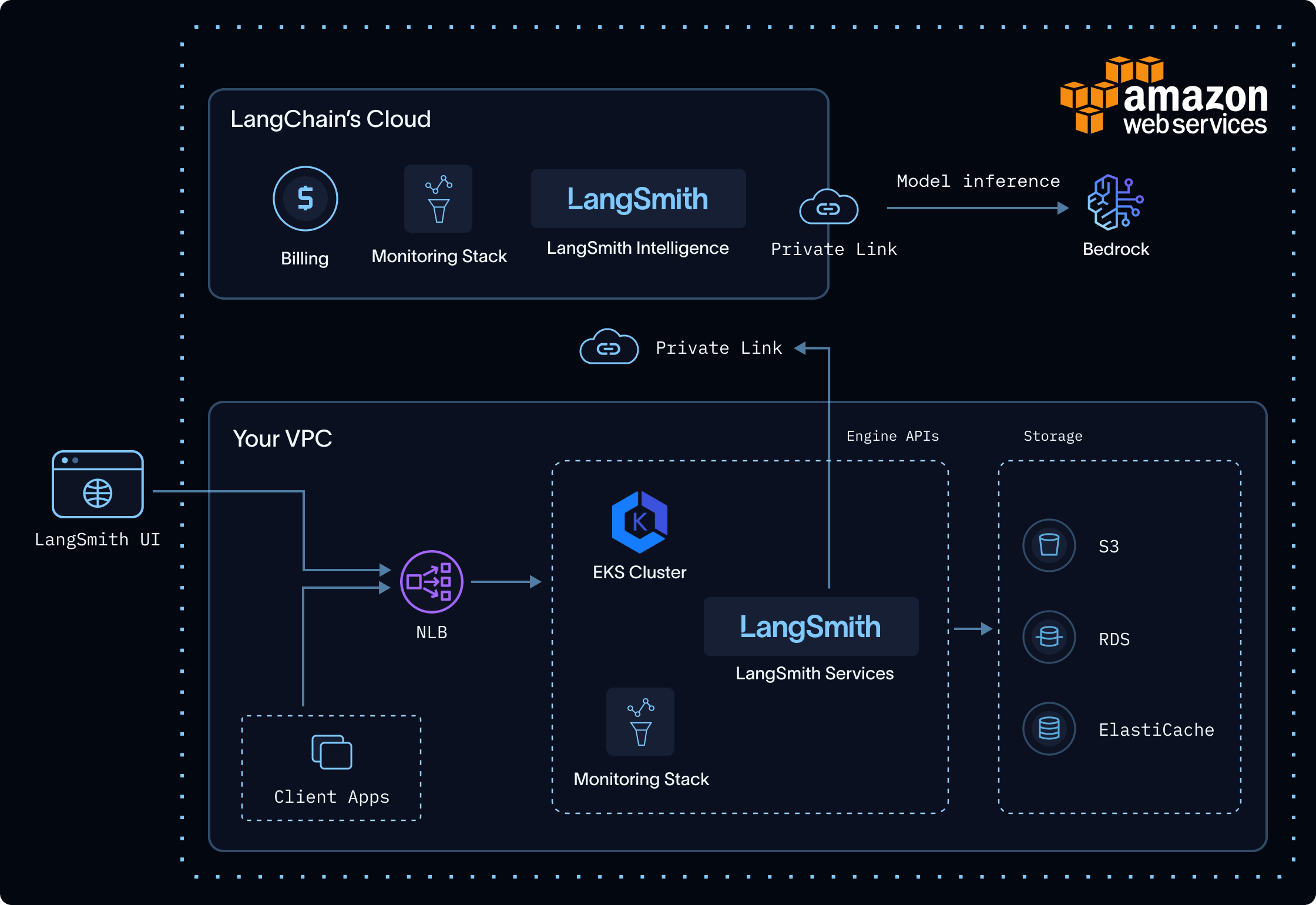
LangSmith Intelligence: Engine runs in your VPC; LSI and Bedrock run in LangChain's AWS environment.
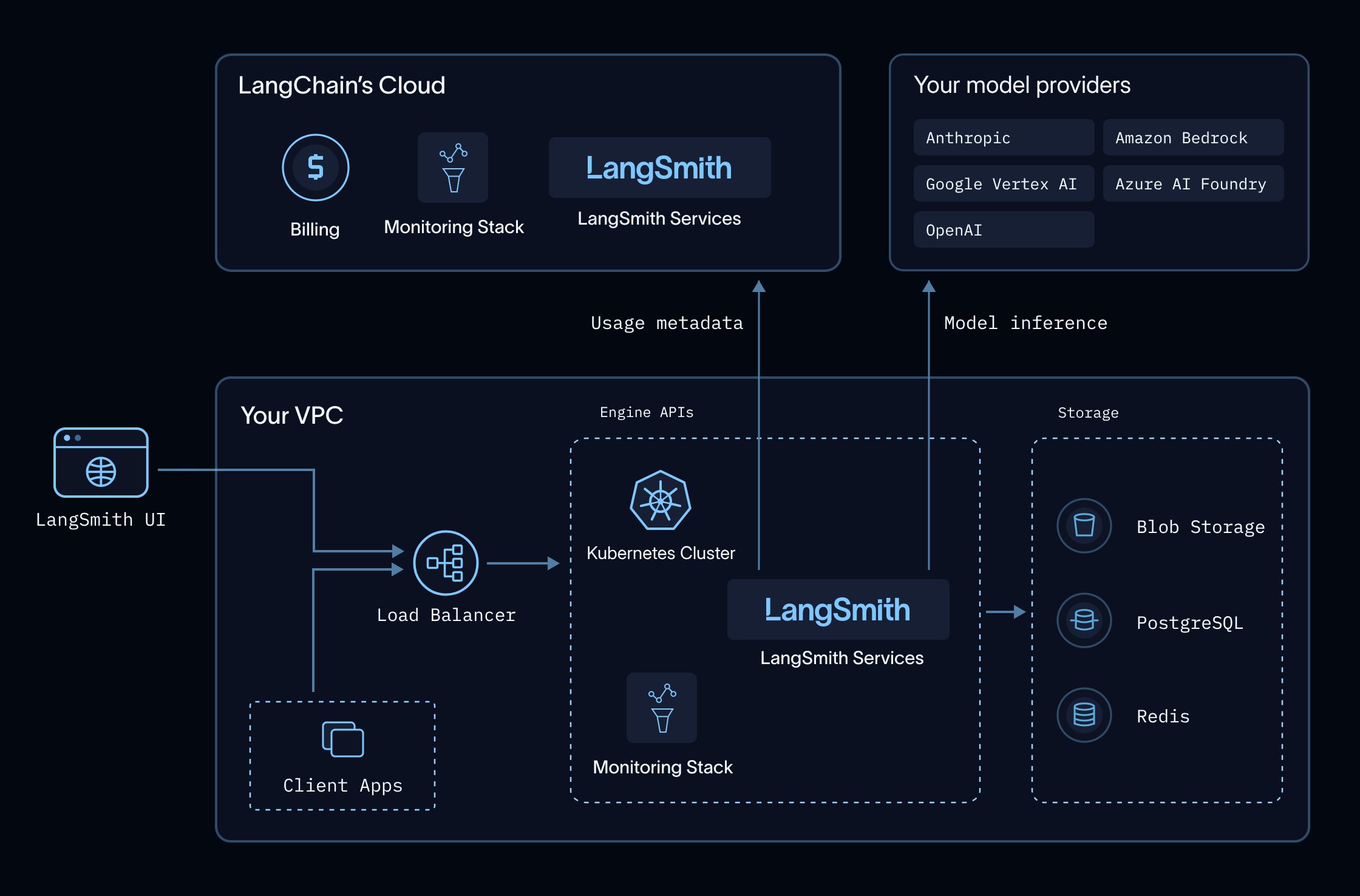
Your own model providers: Engine runs in your VPC and calls your providers directly, and only usage metadata goes to LangChain.
LangSmith Intelligence
LSI is a LangChain-managed service that runs Engine’s models. Engine sends its model requests tohttps://beacon.aws.langchain.com/intelligence, authenticated with your LangSmith license, so you do not provide model-provider credentials. Each request carries the trace content, code, and intermediate outputs Engine needs to do its work.
Engine uses different models, each tuned for its role, to cluster issues, diagnose root causes against your code, generate fixes, and write evaluators that verify them. LangChain tunes these models for quality and token efficiency, and updates them as better models become available.
Your cluster must allow outbound HTTPS to that gateway. The connection can use public egress or private connectivity. To keep Engine traffic on private networking, follow Connect with AWS PrivateLink.
If the connection to LSI is unavailable, Engine stops and returns an error. The rest of your LangSmith deployment is unaffected, and Engine tries again on its next scheduled scan.
Your own model providers
Engine calls Anthropic, OpenAI, Amazon Bedrock, Google Vertex AI, or Azure AI Foundry directly from your cluster, with credentials or cloud identity you control. Prompts and responses go only to your provider. To select providers and add credentials, see Configure model providers for Engine on self-hosted.Where Engine processes and stores data
In a self-hosted deployment, Engine separates data handling between your environment and LangChain’s:- Your environment: Engine orchestration and LangSmith-stored traces remain in your self-hosted environment.
- LangChain’s environment, with LangSmith Intelligence: LSI and the model provider process content that Engine sends. LSI retains only usage metadata.
- Your model providers, with your own providers: Your providers process content that Engine sends, under your agreements with them. LangChain receives only usage metadata.
What LangSmith Intelligence retains
LSI does not persist the content of prompts or model responses. It retains the following metadata for usage attribution and billing:- Account, workspace, and project identifiers used to attribute usage.
- Model and token-usage metadata used for billing.
engine.intelligenceBaseUrl every hour, authenticated with your license.
For LangChain-managed inference, the model-provider retention and training commitments are described in Engine security. When you use your own providers, their retention and training policies depend on your agreements with them.
Install Engine
This section applies to self-hosted LangSmith. On BYOC, LangChain installs Engine. See Engine on BYOC. Engine is disabled by default. It requires Sandboxes, a connection to LangSmith Intelligence unless your installation is air-gapped, an externally reachableconfig.hostname, and Engine’s keys. Complete the prerequisites before enabling Engine.
Engine and Insights run from the same image and share one deployment. Insights is not required for Engine. If your installation already runs Insights, enabling Engine adds configuration rather than new pods.
Components
Enabling Engine provisions or reuses:standalone-insights-api-server: serves both theengineandinsightsgraphs.standalone-insights-queue: background run processing for Engine and Insights.- A dedicated PostgreSQL and Redis instance for the shared deployment, each replaceable with an external instance.
- The sandbox components described under Enable Sandboxes.
platform-backend and ingest-queue, which dispatch and schedule its runs.
Prerequisites
1
Enable Sandboxes
Complete Enable Sandboxes first, including the KVM-capable node pool and JuiceFS storage.Engine’s sandboxes are associated with one workspace. An install with Engine must have a shared organization. When the install has one shared organization, LangSmith uses its oldest active workspace by default, even if the organization has multiple workspaces. To use a dedicated workspace instead, create the workspace and set
engine.sandboxTenantId to its ID. If the install has multiple shared organizations, you must set engine.sandboxTenantId because LangSmith does not choose between organizations automatically.2
Confirm the license entitlement
Engine is licensed separately, in the same way as Sandboxes. Your license must carry the Engine entitlement. LangSmith validates your license key against
https://beacon.langchain.com at startup and periodically thereafter, so the entitlement takes effect without you changing any configuration once it is added to your order.3
Allow egress to LangSmith Intelligence and your model providers
Set
engine.intelligenceBaseUrl for how Engine runs its models, and allow outbound HTTPS from the cluster to that URL:The AWS URL also records usage, so it works for organizations on either option. The default URL only records usage, on the same host self-hosted LangSmith already uses for license verification and billing telemetry, so it adds a path rather than a new egress destination.On chart 0.16,
engine.intelligenceBaseUrl has no default and Engine runs only on LangSmith Intelligence, so set it to https://beacon.aws.langchain.com/intelligence.If Engine runs on your own model providers, also allow outbound HTTPS from the standalone-insights pods to each provider’s API endpoint. To keep that traffic on private networking, see Connect to your providers privately.Add each destination as a specific allowlist entry rather than opening general egress. To keep traffic to LangSmith Intelligence on private networking, connect with AWS PrivateLink. Requests to LangSmith Intelligence use a short-lived license JWT obtained during LangSmith license verification. Engine’s traffic is separate from the billing and operational telemetry described in Configure egress, even where it shares a host.4
Verify your hostname is externally reachable
Engine’s sandboxes call your LangSmith install using the
langsmith CLI, so config.hostname must be reachable from the sandbox network. Helm validation rejects localhost and in-cluster *.svc addresses.Serve that hostname through your ingress with TLS, as described in Set up an ingress. Engine’s sandbox network policy permits access to your LangSmith hostname, the configured GitHub hosts, and the public PyPI and npm registries. A proxy outside the sandbox injects per-run credentials, so they are not readable inside it.When Engine generates a code fix, it installs dependencies from pypi.org, files.pythonhosted.org, and registry.npmjs.org. The registry hosts are not configurable, so Engine cannot use an internal PyPI or npm mirror, and dependency installs fail if your network blocks the public registries. Sandboxes cannot reach Go module proxies such as proxy.golang.org, so Engine uses your connected code repository’s vendor/ directory when it is present.For GitHub connections, also allow the outbound requests and inbound webhooks required by your GitHub environment. Browser access to LangSmith alone does not establish webhook connectivity from GitHub.5
Generate Engine's keys
Engine needs two keys of its own:
-
Encryption key (
engine_encryption_key): a Fernet key that encrypts the run payloads LangSmith passes to Engine, which carry short-lived credentials. -
Usage signing secret (
engine_usage_signing_secret): signs the usage reports Engine sends to LangSmith. Use at least 32 random characters.
helm template and GitOps renders skip that lookup, so verify the keys are present separately.To rotate the encryption key, copy the current value to engine_encryption_key_previous and set the new key as engine_encryption_key. The previous key is accepted for decryption only, so runs encrypted just before the swap still complete.When introducing or rotating the usage signing secret, pause new Engine work and wait for running scans to finish. Update platform-backend, ingest-queue, and the shared Engine and Insights API server and queue to use the same signing secret. After all four components are healthy, resume Engine and verify an analysis and Engine usage. The previous encryption key does not provide a fallback for usage signatures.Enable with Helm
Add the following to yourlangsmith_config.yaml, alongside the complete Sandboxes values from Enable Sandboxes. These examples show only the Engine-specific values and the sandboxes.enabled flag.
- Using Kubernetes secrets (recommended)
- Using inline values
Reference your existing Secret by name. The chart reads
engine_encryption_key and engine_usage_signing_secret from it.To use a workspace other than the oldest active workspace, or if your install has multiple shared organizations, set the workspace that owns Engine’s sandboxes:
Verify the installation
Confirm the shared Engine and Insights deployment is running:Running. Then, confirm platform-backend is healthy, since it dispatches Engine runs:
engine.intelligenceBaseUrl.
Turn on Engine in LangSmith
Enabling Engine in Helm makes the feature available, but it does not start any scans. After enabling the chart values, finish setup in LangSmith:- An Organization Admin turns Engine on for the organization under Settings > Engine. For more information, see Enable Engine for your organization.
- An Organization Admin chooses how Engine runs its models under Settings > Engine > Model providers. Engine does not start any runs until this is saved.
- A user whose role can update tracing projects turns on Engine for a tracing project from its Engine tab. For more information, see Set up Engine.
Disable Engine
Setengine.enabled to false and re-apply:
standalone-insights pods keep running when insights.enabled is true.
Air-gapped installations
Installations with an offline license and no connection to LangSmith Intelligence can run Engine on their own model providers:- Set
engine.intelligenceBaseUrlto"". - Choose your own model providers under Settings > Engine > Model providers. LangSmith Intelligence is not available.
- Allow outbound HTTPS from the
standalone-insightspods to your model providers, or route it through your own network path to them.
0 are not enforced. Set a limit of 0 to pause Engine for an organization or a project.
See also
- LangSmith Engine
- Set up Engine
- Configure model providers for Engine on self-hosted
- Configure GitHub for Engine on self-hosted
- Connect Engine to your repository
- Engine security
- Engine notifications
- Connect self-hosted and BYOC LangSmith to Slack
- BYOC
- Enable additional LangSmith features
Connect these docs to your agent of choice via MCP for real-time answers.